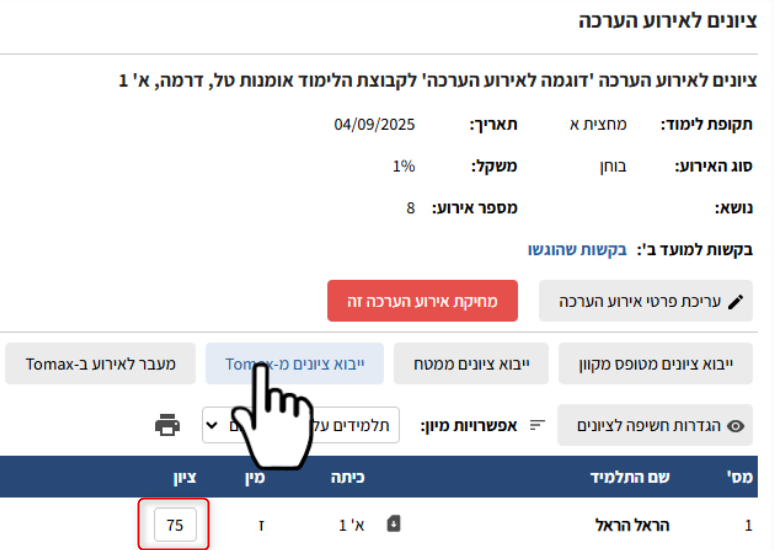
This guide will walk you through the complete process of creating an online assessment event, from its initial setup in the Smartschool system, through building and managing the exam in the Tomax system, to grading the submissions and importing the scores back into Smartschool.
The interface between the systems allows for a seamless and smooth workflow, without the need for multiple logins or additional authentications.
* Images in this guide can be viewed in full screen by clicking on them
Step 1: Creating the Assessment Event in Smart School
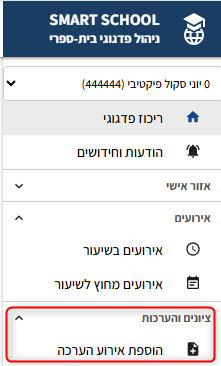
- In the Smart School system, click on the "Add Assessment Event" option.
- On the "Edit Assessment Event" page, fill in the required event details such as the event name, study group, event type, and so on.
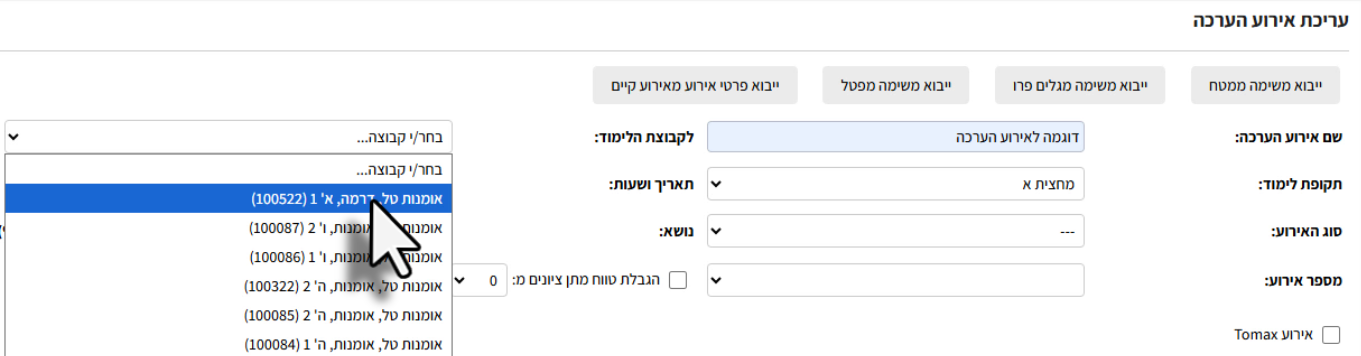
- Now, link the event to the Tomax system by checking the "Tomax Event" checkbox.
 Note: This checkbox is what activates the interface between the systems and is essential for the process to continue.
 When finished, click the "Save and Enter Grades" button.
The system will now take you to the "Grades for Assessment Event" page.
Step 2: Configuring the Event in the Tomax System
- On the "Grades for Assessment Event" page, click the "Go to Event in Tomax" button.
- You will be automatically redirected to the event settings screen in Tomax. Configure the assessment properties, such as:
- Activity Type:
- Exam: The activity is taken using a dedicated application.
- Browser-based Exam: Allows taking the exam via a link in a web browser.
- Activity Scheduling:
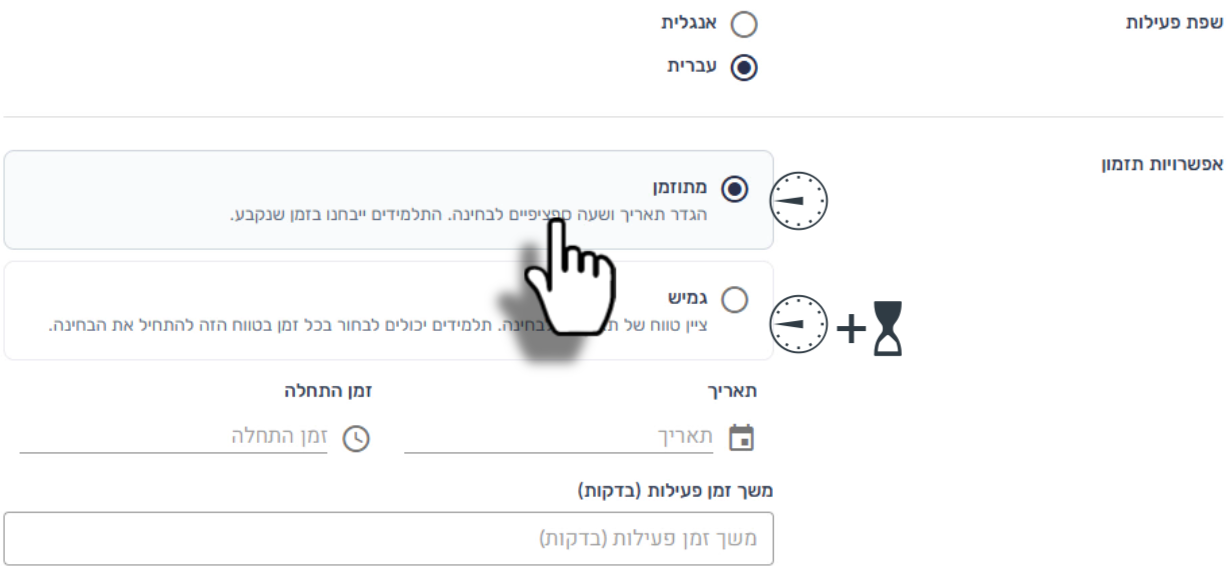
- Scheduled: An event that starts on a set date and ends according to the duration allocated.
- Flexible: An event that can be accessed within a date range (e.g., during a week), with a separately defined duration. This allows students to enter at any time within the defined range, but they will be limited to the allotted time from the moment they start.
- Additional Settings: Depending on your institution's permissions, you can configure advanced options like uploading appendices for the exam, shuffling the order of questions and answers, and more.
- Activity Type:
- After configuring all the settings, click "Confirm" to proceed to the content creation stage.
Step 3: Creating Content in the Editor
You are now in the Tomax content editor, where you can build your questionnaire.
- Click the (+) button to add a new question.
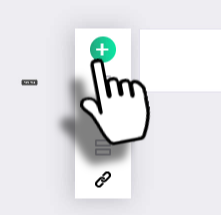
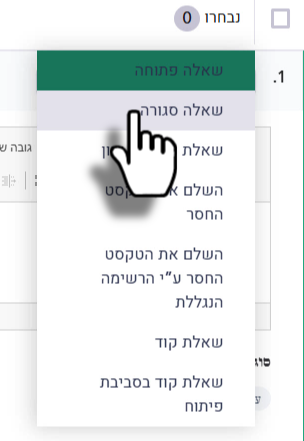
- Choose the desired question type (e.g., Multiple Choice, Open-ended, etc.).
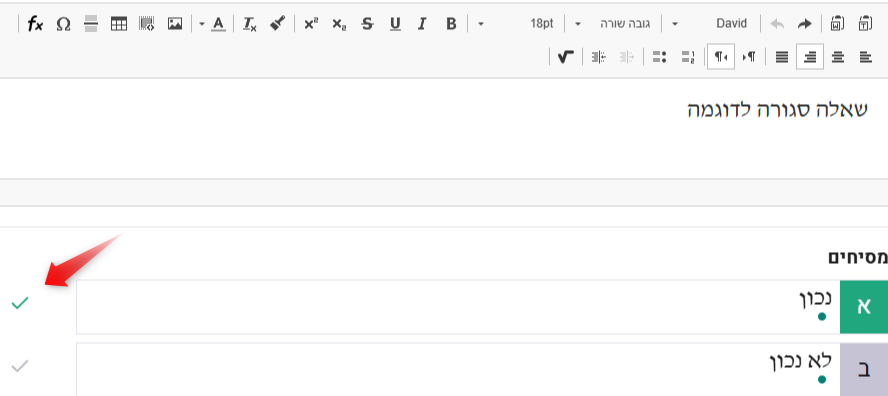
- For multiple-choice questions, enter the possible answers and mark the correct one.
- Set the score for each question individually, or set a uniform score for all questions.
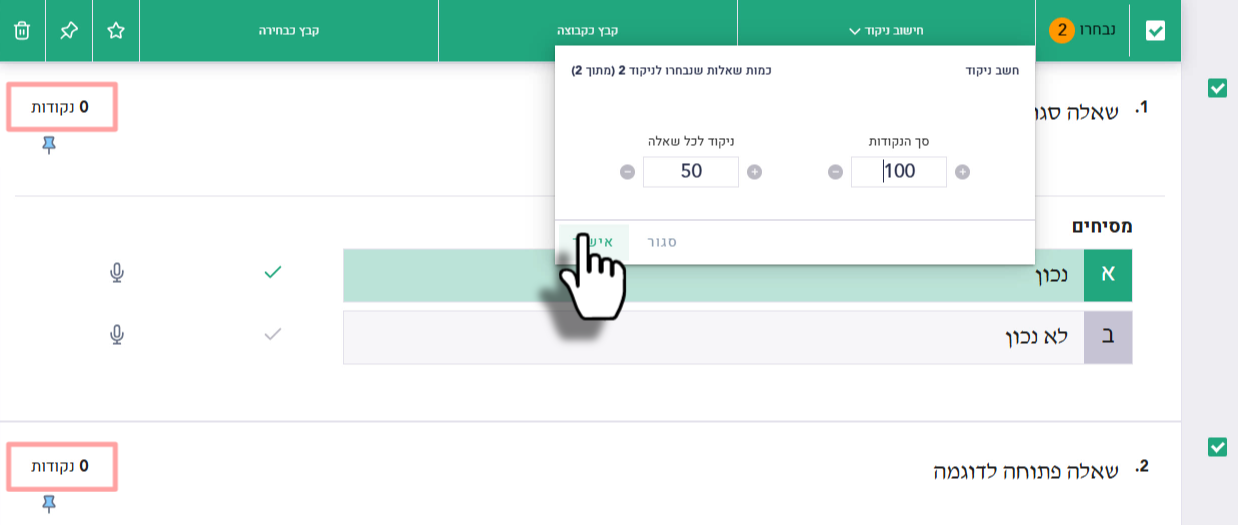
- When you finish building the exam, click "Continue to Deposit" to save and create the event.
Step 4: Real-Time Activity Management (Monitor)
After creating the content, you will be taken to the event management screen - the Activity Monitor.
- On the events (courses) page, filter the events by "Active" status to find the current exam.
- In the row of the desired event, click on "Activity Monitor".

- In the Monitor screen, you can:
- In the Participants tab: See the status of students (connected, in progress, submitted), track their response progress, and more.
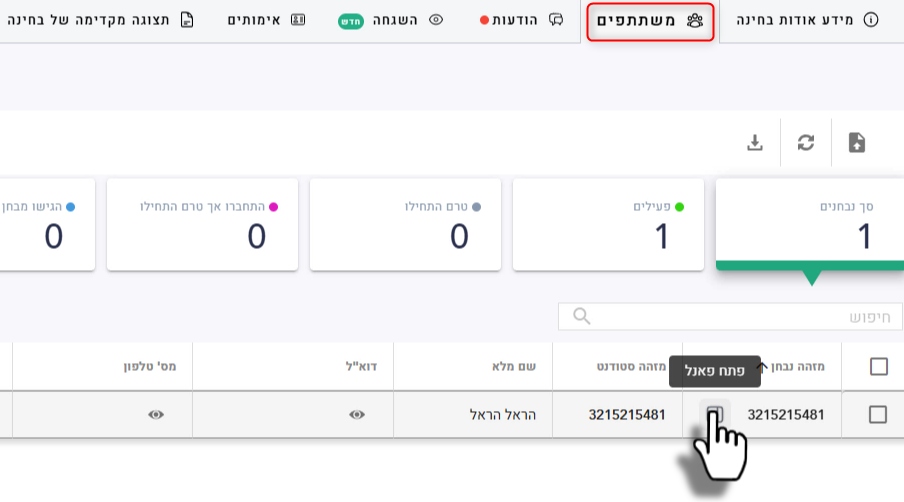
- By clicking "Open Panel", you can see a summary of the student's data.
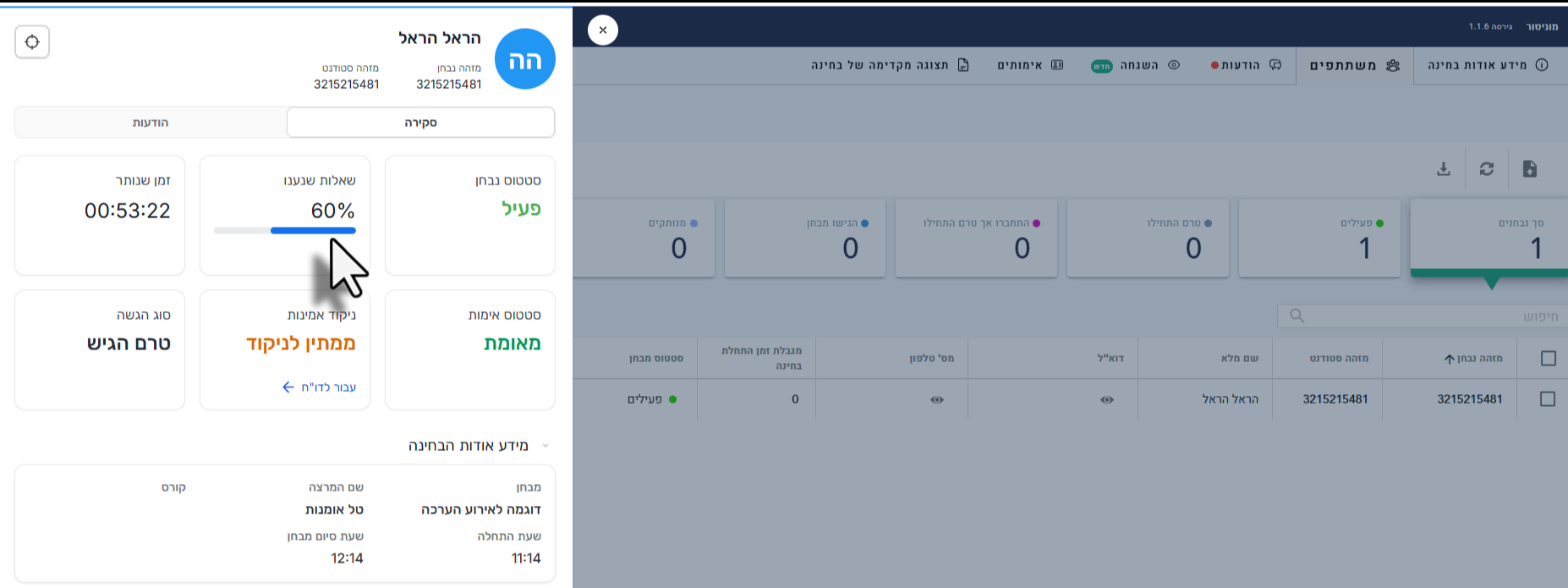
- By clicking "Open Panel", you can see a summary of the student's data.
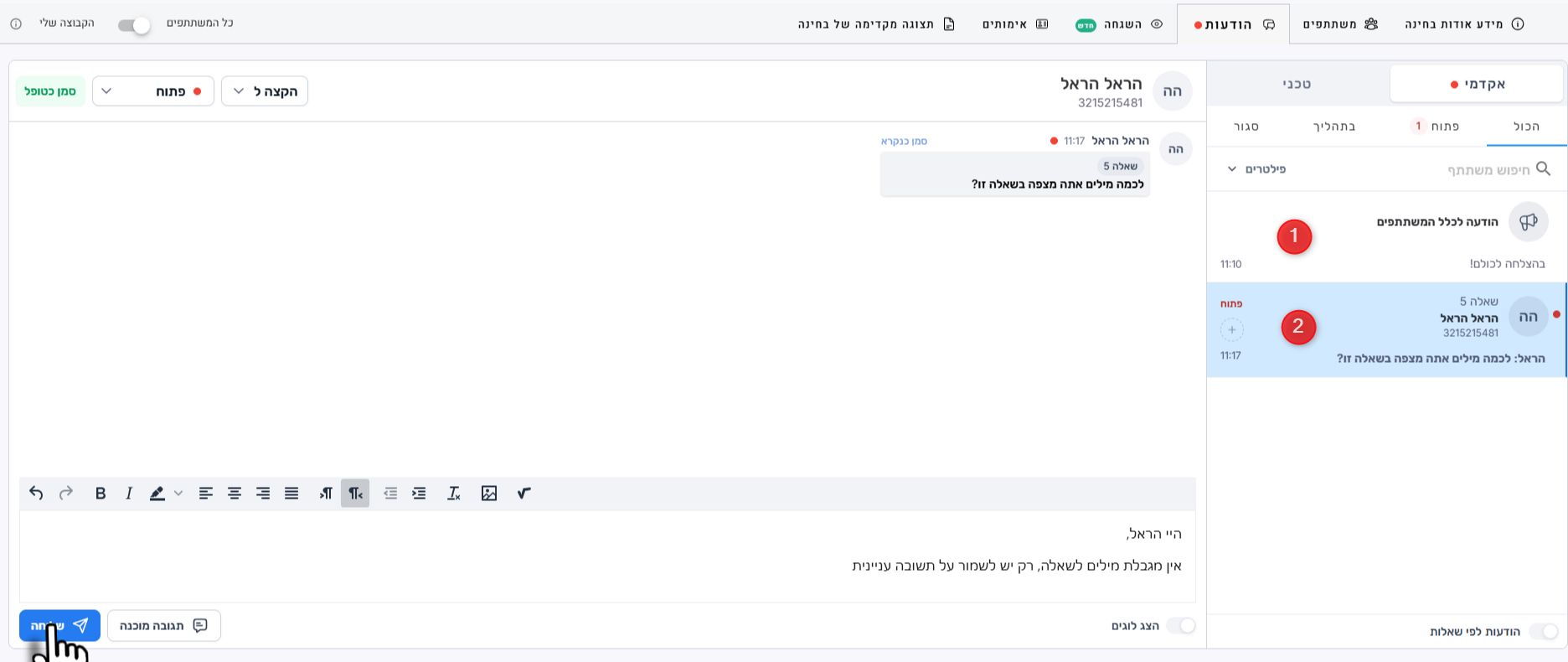
- In the Messages tab: Send general messages (1) to all participants or manage a private chat with a specific student (2).
- In the Participants tab: See the status of students (connected, in progress, submitted), track their response progress, and more.
Step 5: Grading Submissions and Assigning Scores
After the event time has ended, you can begin the grading process.
- Return to the events screen in Tomax.
- Filter the event list by "Transferred for Grading" status.
- In the row of the desired event, click on "Grade and Publish".

The grading system (TomaGrade) will open in a new tab
- To grade open-ended questions, click Start/Continue Grading (1) or click directly on a student's exam from the list (2).
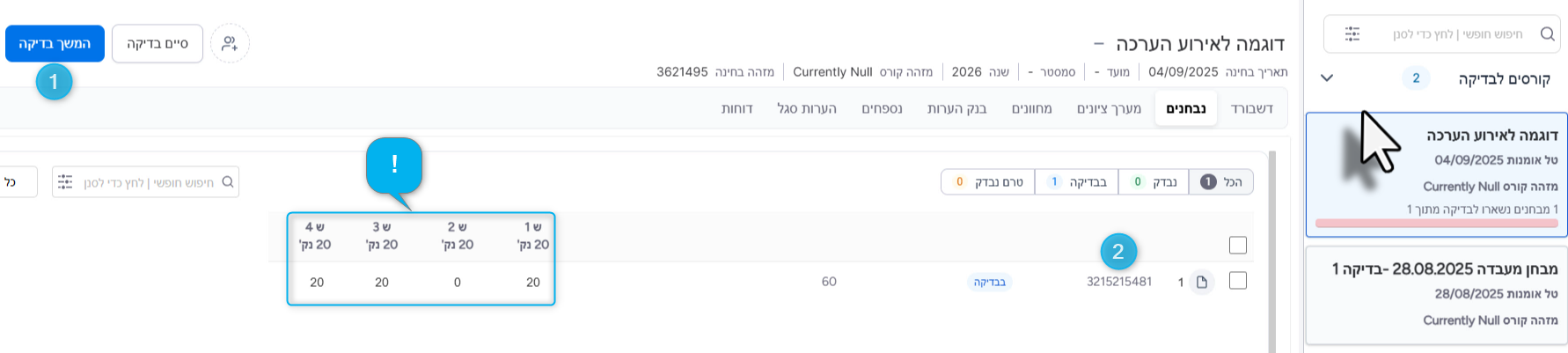
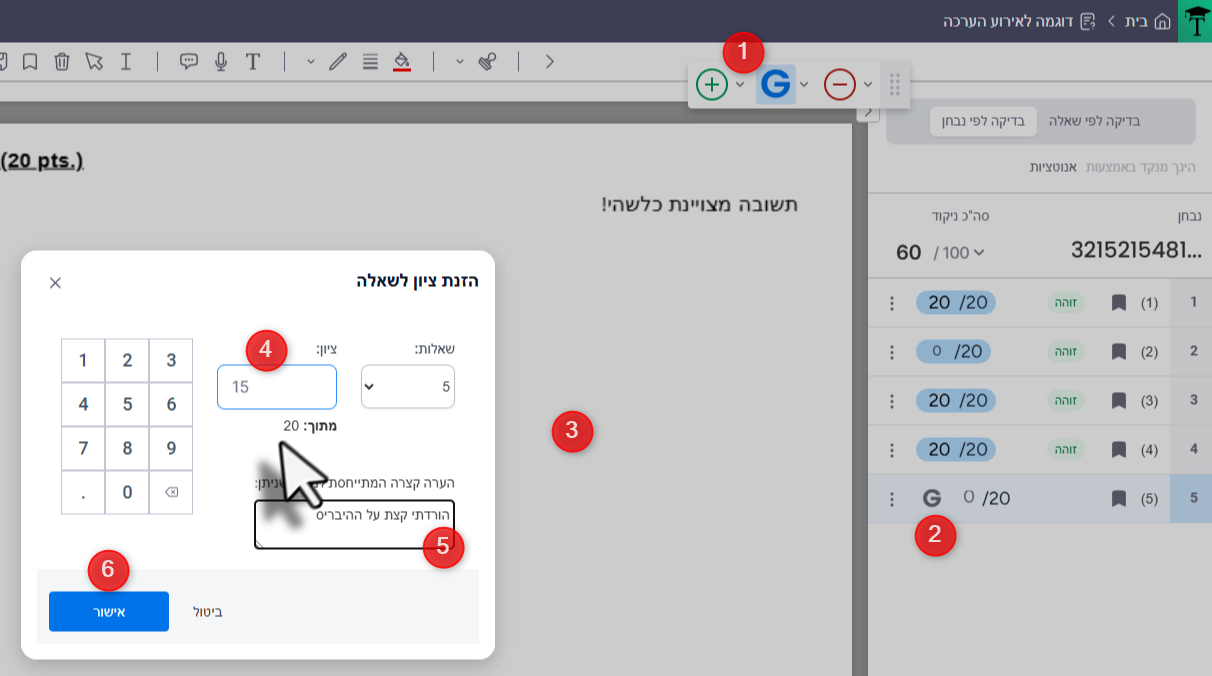
- In the grading screen, navigate between the open-ended questions. To assign a score:
- Click the 'G' button on the toolbar (1) or next to the desired question (2).
- Click again on the desired location within the student's exam booklet (3).
- Enter the score (4), add a comment if you wish (5), and click "Confirm" (6).
- After grading all the questions in the booklet, click "Confirm Score".
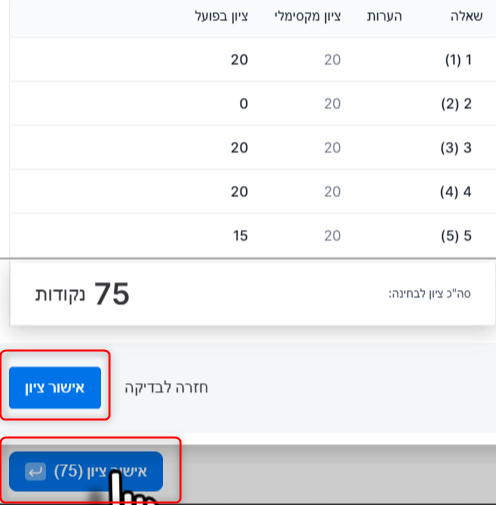
- After finishing the grading of all booklets, you will be automatically returned to the main screen.
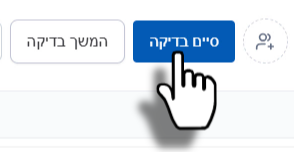
- To finalize the grading and submit the scores, click on "Finish Grading".
Step 6: Importing Grades Back to Smartschool
The final step is to synchronize the final scores back to the grade sheet in Smartschool.
- Return to the Smartschool system.
- Navigate to the "Grades for Assessment Event" page for the event you created.
- Click the "Import Grades from Tomax" button.
The scores will be imported automatically and will appear in the study group's grade sheet.